

Mornings are where a lot of families feel the pressure first. Shoes, breakfast, the bus at 8:10, and a child who doesn't yet know what comes after the toothbrush. A morning routine visual schedule puts those steps in pictures, in the same order every day, so your child can see what is happening now and what comes next.
Below: why that helps, five steps to start with, and how to build it in RomaTalk, a communication and learning tool for Android, iPhone and iPad.
Why a predictable morning helps
My son Roma is autistic and does not speak. Understanding spoken language is very hard for him, so “Get dressed, we’re leaving soon” is mostly noise. What we learned at home is simple: predictability helps, and a familiar order of events calms him.
The National Autistic Society lists “visual schedules to help structure the day and reduce uncertainty” among its tips for managing anxiety. Its guide to organising and prioritising gives the example of a daily timetable with pictures of a shower, clothes and breakfast. The American Speech-Language-Hearing Association (ASHA) notes in its page on augmentative and alternative communication that visual schedules can use photographs, drawings or other symbols to help with understanding routines and expectations.
Home is harder than school. In a small pilot study of visual supports at home with families of 29 children, parents said visual timetables were more difficult to use at home, which is less structured than school. So keep it short, keep it real, and expect a few wobbly days.
Five picture steps for a calm morning
Here is a starting set. Every step below is a ready-made card in RomaTalk, with a picture and a spoken name:
- Wake up
- Toilet
- Wash face
- Get dressed
- Eat breakfast
Breakfast goes last on purpose: ending on something your child looks forward to keeps the sequence moving. If your mornings include “Brush teeth”, “Comb hair” or “Put on shoes”, those cards exist too. Swap one in rather than adding three at once.
How to build a morning routine visual schedule in RomaTalk
Everything below happens in the Parents area, which sits behind a PIN or Face ID. Tap Parents, then Schedules.
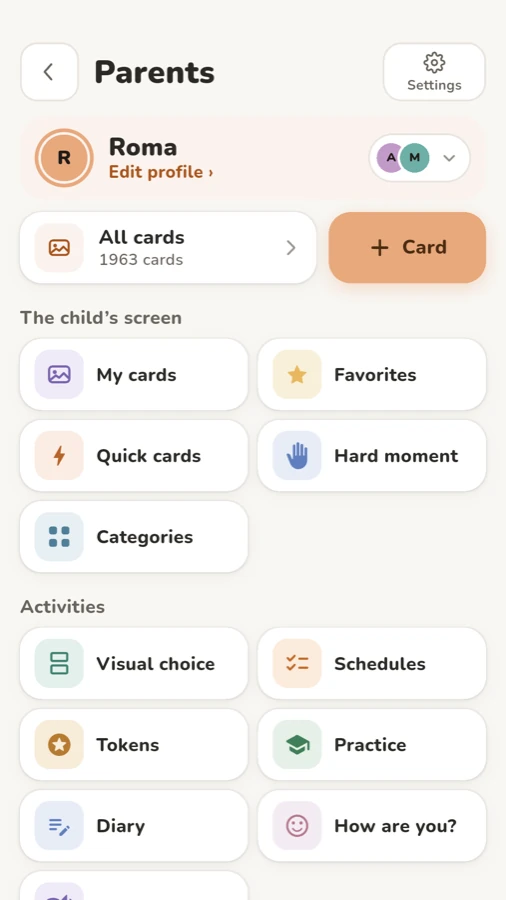
RomaTalk comes with an example schedule called “Morning”, filled from the built-in morning routine. It starts switched off, with no days chosen, so nothing appears on your child's screen until you decide.
- Open Parents › Schedules. Choose “Edit” in the menu of the “Morning” example, or tap “New” to start fresh.
- Type a name under “Name”.
- Under “Steps”, tap “Add a step” and pick cards one by one. The “Routine” chip shows the likely steps first, and the search box looks through every card. A new, empty schedule also offers “Start from a daily routine”, which fills the list in one tap.
- Drag steps to reorder them and remove the ones you don't need.
- Choose the “Days” (“Every day”, “Weekdays” or “Weekends”) and set the “Start time” and “End time”. Until you choose days, the schedule won't appear on your child's screen.
- Under “How many steps to show”, pick a display mode (more on this below).
- Tap “See it as your child will” to check the result. Nothing you check off in the preview is saved.
If you delete every schedule, the empty list offers “Ready-made” schedules: “Morning before daycare”, “After lunch” and “Evening”. Tap one to add it, then adjust it.
Using your own photos as steps
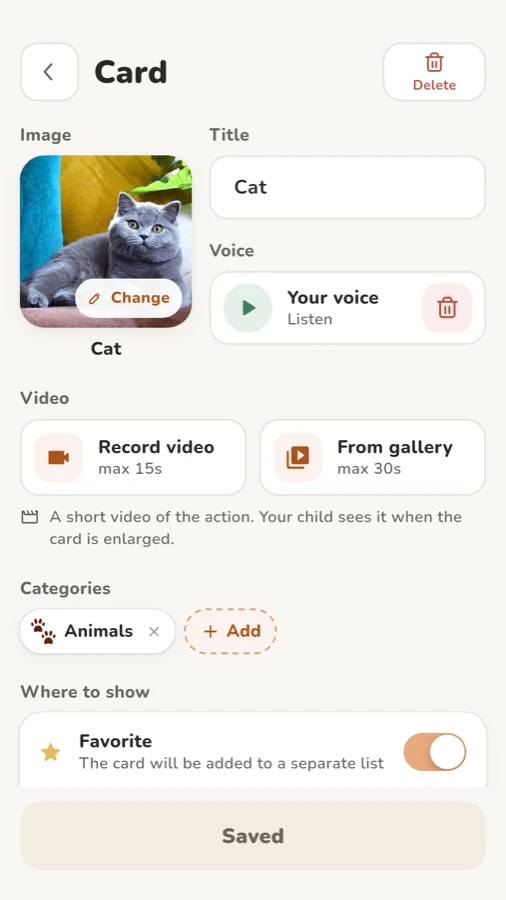
Each step is a card, so your own photo works too. Tap “+ Card” on the Parents screen, photograph your child's own sink, the blue jumper on the chair or their cereal bowl, and save it. The card then shows up under “Add a step”. Before RomaTalk existed, I showed Roma photos from my phone gallery, because many ready-made pictures had nothing to do with his life. There's more on this in making AAC cards with your own photos.
What your child sees
At the time you chose, a schedule block appears above your child's cards, and tapping it opens the schedule. The step due now fills the middle of the screen as one big card with its picture, its name and a wide “Done” button. That button is the only thing that checks a step off, and only the current step can be checked. A done step moves to the “Done” strip at the top. When everything is done, your child presses “Finish”.
You decide how much your child sees at once, under “How many steps to show”:
- “One step”: only the current one. For children who find several steps at once too much.
- “First → Then”: the current step and the one after it. If you already use a First Then board, this will feel familiar (see our First Then board examples).
- “All steps”: the whole plan at once, with done steps moving to “Done”.
Timers and the “Wait time” step
Any step can have a “Time for the step”, and your child can start and pause that timer. There's also “Wait time”, a separate kind of step for waiting, say for the bus or for toast. A “Wait” step runs and ends by itself, with nothing to check off.
When the morning goes off script
Spilt milk happens. Press and hold “Change of plan” at the bottom of the schedule to add, remove or reorder steps. The change is for today only. On a sick day, open the menu next to the schedule in the list and choose “Call off for today”, or “Pause” it for a week or until a date. Nothing is deleted.
Today, Week and the home screen widget
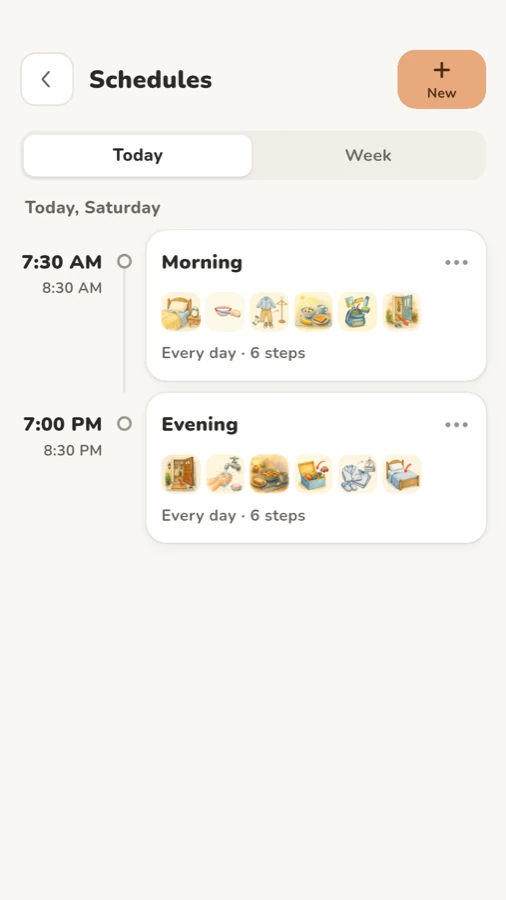
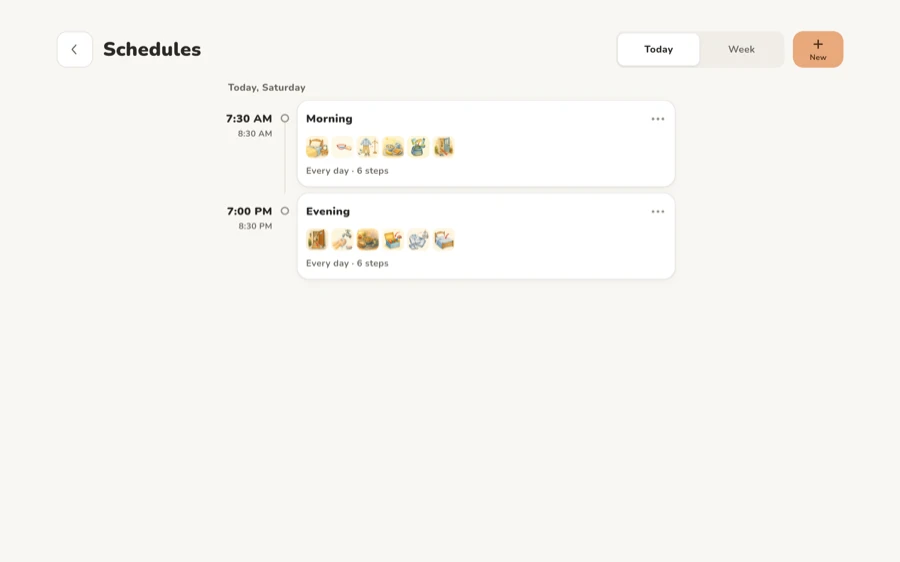
The Schedules screen has two tabs. “Today” lists today's schedules in time order. “Week” shows the week as a table, a row per day and a column for “Morning”, “Afternoon” and “Evening”. If two schedules overlap, the table points it out and offers “Fix”.
On Android and iPhone you can also add the “Now → then” widget to the home screen. It shows the schedule step happening now and the next one, with a “Done” button. A step marked done on the widget counts exactly like one checked off in the app.
Practical tips from our mornings
- Start with fewer steps. Three or four is fine for the first week. Add the fifth once the first ones feel easy.
- Photograph your own things. Your bathroom, your child's clothes, the kitchen table. Real places are easier to recognize.
- Put the motivating step last. Breakfast, a favourite show, the walk to the park.
- Keep the order the same for a week before you change anything. A morning routine visual schedule works because it stays predictable.
- Walk through it together. In the first days, go through the steps with your child and mark each one that's done.
The free version includes two of your own schedules, and the bundled “Morning” example counts as one. You can download RomaTalk and try it today.
FAQ
How many steps should a morning routine visual schedule have?
Start with three to five. Fewer steps are easier to follow, and you can add more once your child knows the routine. In RomaTalk, “One step” mode shows only the current step if even a short list feels like too much.
Can I use photos of our own home in the schedule?
Yes. Make a card with your own photo using “+ Card” in the Parents area, then add it with “Add a step”. Many children recognize their own sink or jacket faster than a drawing.
Does the schedule need the internet?
No. RomaTalk works offline, with no account and no ads, so the schedule works at grandma's house or on a plane.
What if our routine changes for one day?
Press and hold “Change of plan” on your child's schedule to edit today only. For holidays, pause the schedule: the steps and settings are kept. Questions about your setup are welcome on the support page.
 Vistadose
 TwoPillows
 RomaTalk
 Vistadose
 TwoPillows